 TruchiChat
GrapheneOS or Android without Google services
TruchiChat for Android Without Google
For GrapheneOS, or if you’d rather use Android without Google services, for more privacy. The app uses nothing from Google. Download it here and install it in a few minutes
Version 0.4.32 (50) · Android 12 or later
SHA-256 of the file: b990bbc55deedd2a6a6c198cffe383f4b467dff8e3e6c1614853c9ad7cc6ddc9
Before you start. You need Android 12 or later. This version is downloaded from here, not from a store, so your phone may show you a warning or two: below we explain which ones and what to tap on each. If your phone has Google Play and you prefer the convenience of the store, the Google Play version is coming soon.
With GrapheneOS
There are no Google services here, so you don’t have to deal with Play Protect or with each brand’s battery savers. It takes four steps:
- Tap Download TruchiChat, above, in your phone’s browser.
- Open it from the download. GrapheneOS will ask you to let the browser install apps: allow it just for this and remove it afterward, in Settings › Apps › Special app access › Install unknown apps.
- Before you open it, use AppVerifier to check that the signature is ours (how).
- Open it and follow the first time you open it: your account and the permissions.
For messages and calls to ring with the app closed, leave Background Connection on in TruchiChat’s Settings and, if Android restricts its battery, remove the restriction. If you turn it off, whatever arrives waits for you encrypted on the server, for up to 24 hours, and shows up when you open the app; a call that couldn’t ring shows up as missed in the chat. To answer with your phone locked, allow full screen when the app asks.
On Other Android Phones
On a phone with Google services there are a few more steps, because Android warns you about anything that doesn’t come from a store. First follow the common steps, then check what applies to your brand:
The Common Steps
The screenshots are from a stock Android phone with Google, in Chrome, set to English (US). On your phone the colors and font may be a little different, but the warnings and buttons are the same. The version shown in them may be older than the one you download.
1. Download the File
Tap the Download TruchiChat button above, in Chrome. If Chrome asks whether you want to download the file anyway, say yes.
When it’s done, Chrome shows File downloaded at the top. Tap Open.
If you miss it, the file is still there: in the Download complete notification, or in Chrome, menu ⋮ › Downloads. It’s called TruchiChat- followed by the version.

2. Let Chrome Install Apps
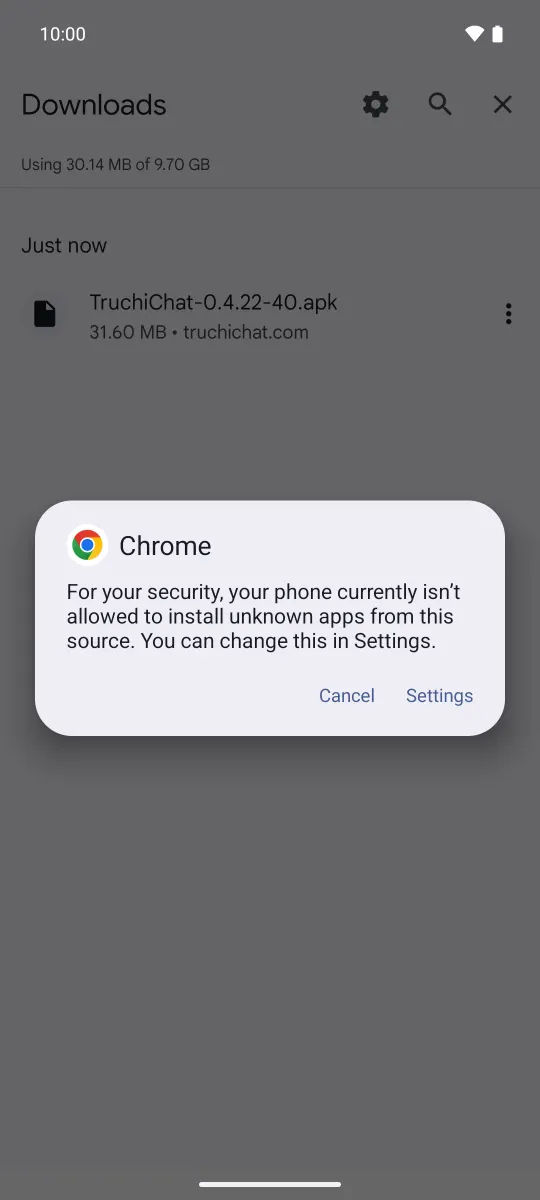
The first time, this box appears: “For your security, your phone currently isn’t allowed to install unknown apps from this source”. That’s normal. Tap Settings.
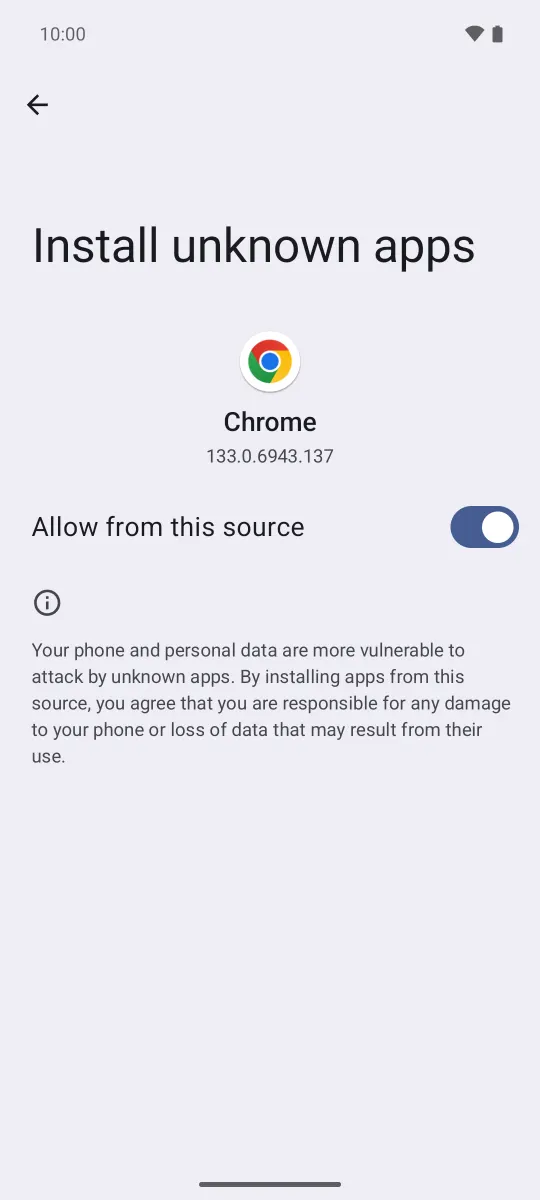
Install unknown apps opens, just for Chrome. Turn on Allow from this source. On some phones the wording is slightly different.
Then go back with the arrow or the back gesture. The installation carries on by itself.
This permission is only for Chrome. If you download the file with another browser, such as Samsung Internet, it will ask you for that one. You can turn it off when you’re done; it will ask you again when you update.
3. Install
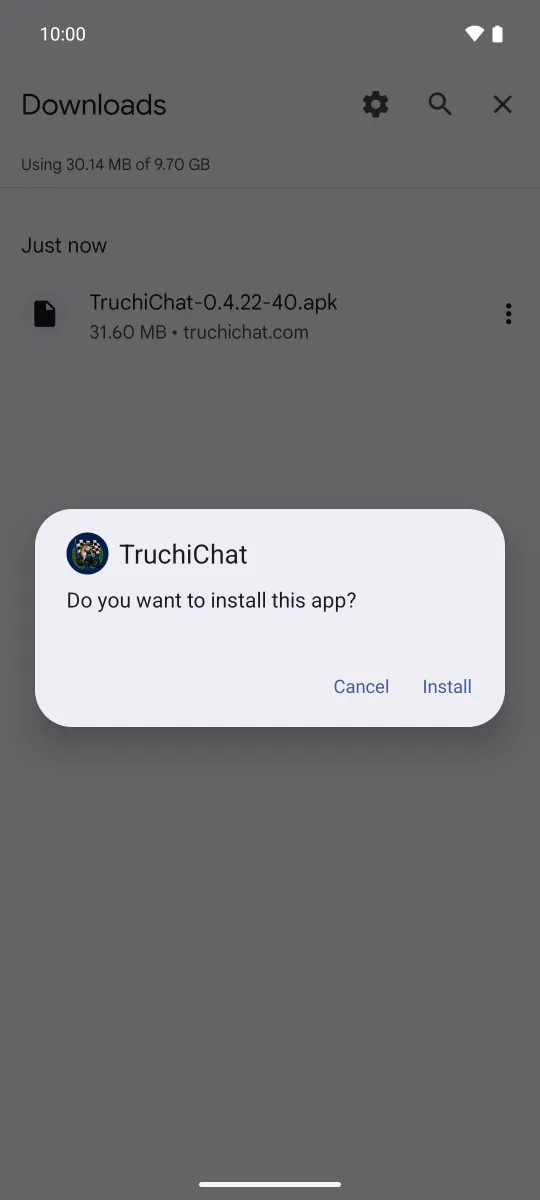
Do you want to install this app? appears with the TruchiChat icon. Tap Install.
4. The Google Play Protect Warning
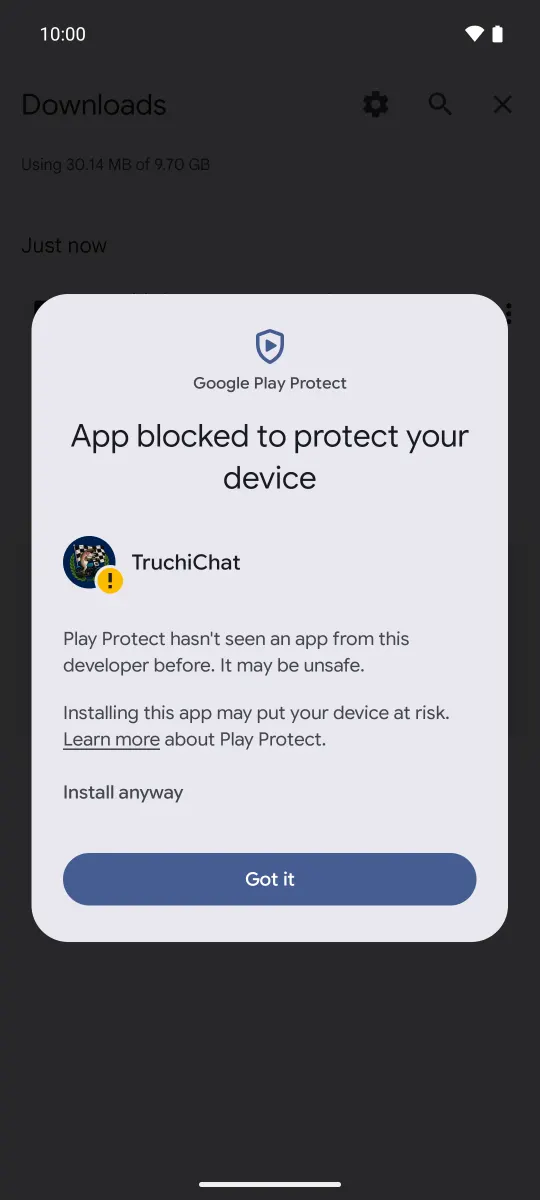
Google checks everything that’s installed outside Google Play. Since this version doesn’t come from there and Google doesn’t know any other apps of ours, it stops it with a warning: “Play Protect hasn’t seen an app from this developer before”. That happens with any new app installed from its website.
Don’t tap “Got it”: that cancels the installation. Tap More details.
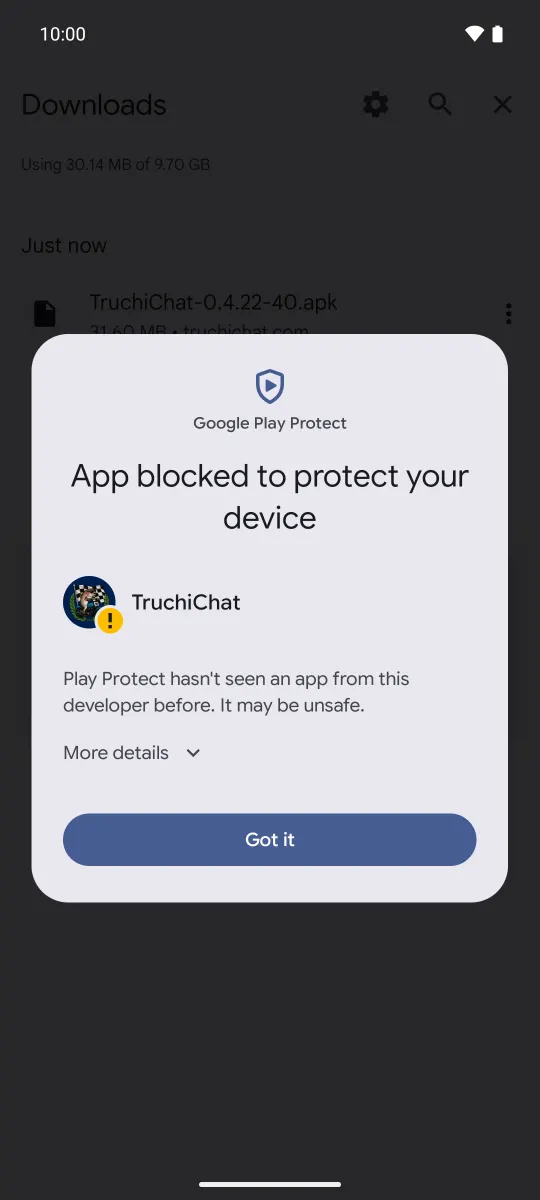
More text unfolds and, below it, Install anyway. Tap it. You don’t need to turn off Play Protect.
If your phone is set to another language, this warning may come out partly in English. The buttons are in the same place.
Sometimes Play Protect also offers to scan the app, sending its details to Google for review. You can accept or not: the installation carries on the same way. What gets sent is the app, not your chats, which don’t exist yet.
5. It’s Installed
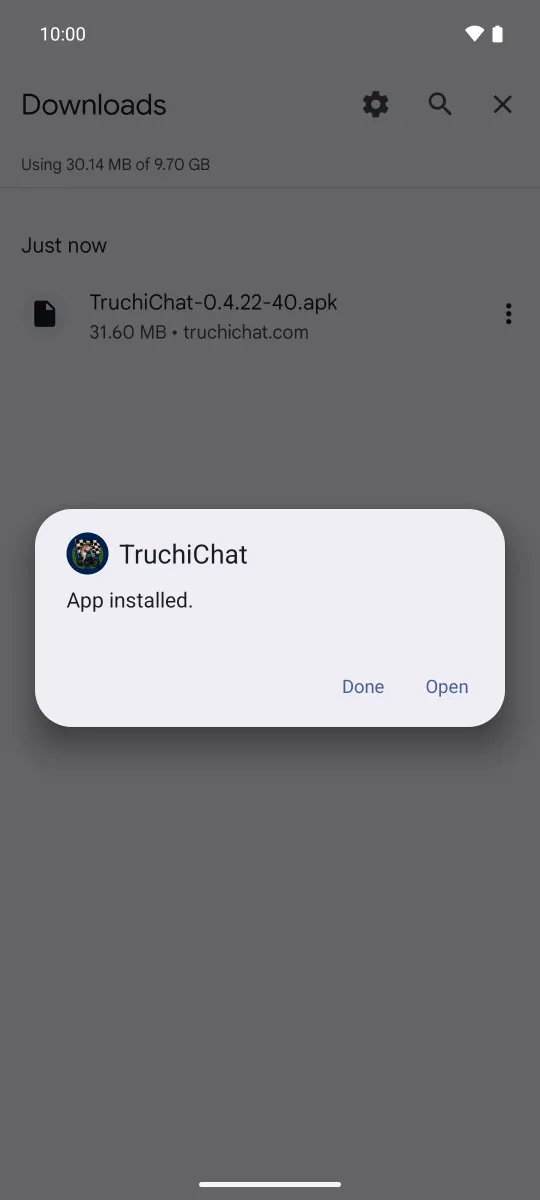
App installed. appears. Tap Open. You’ll also find it among your apps now.
The First Time You Open It
Your Account
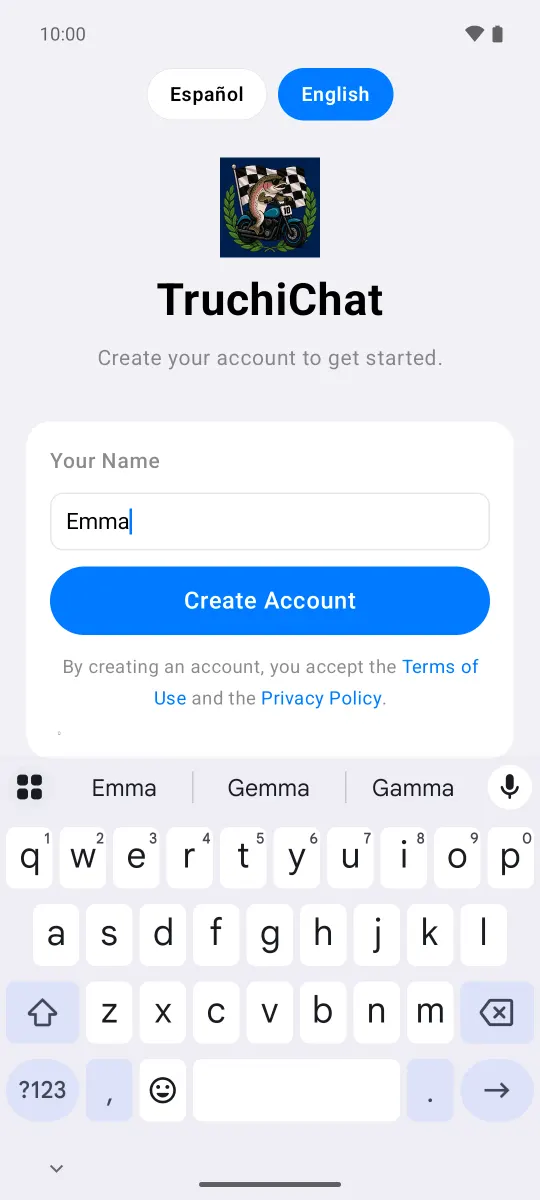
Type the name people will see and tap Create Account. It doesn’t ask for a phone number or an email. The account is created right away and you can start chatting.
Two Permissions
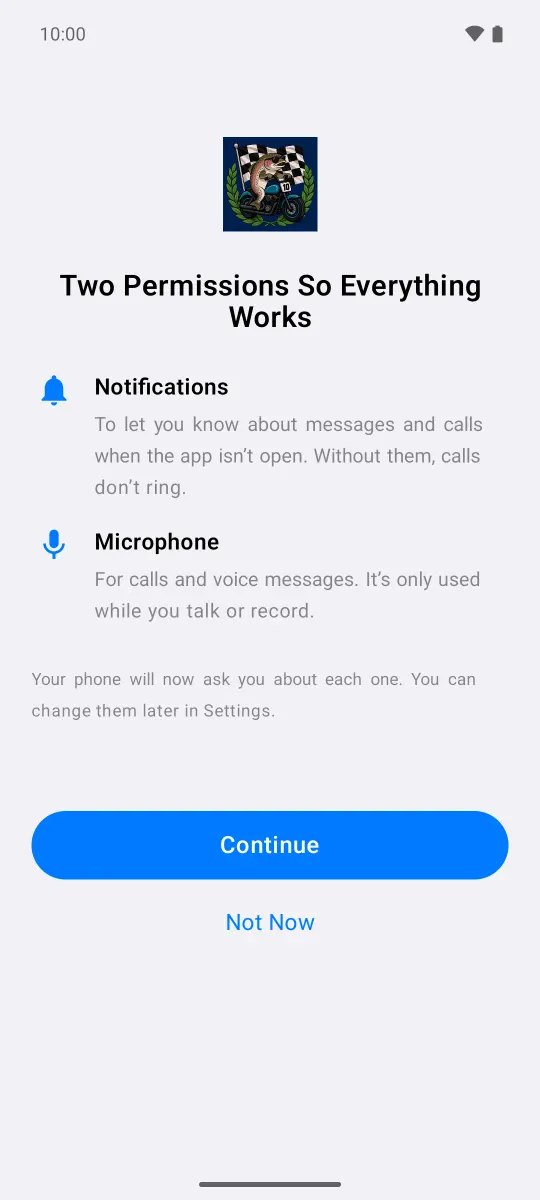
The app explains what they’re for: Notifications, to let you know about messages and calls, and Microphone, for calls and voice notes. Tap Continue and, in the two Android boxes that appear next, Allow.
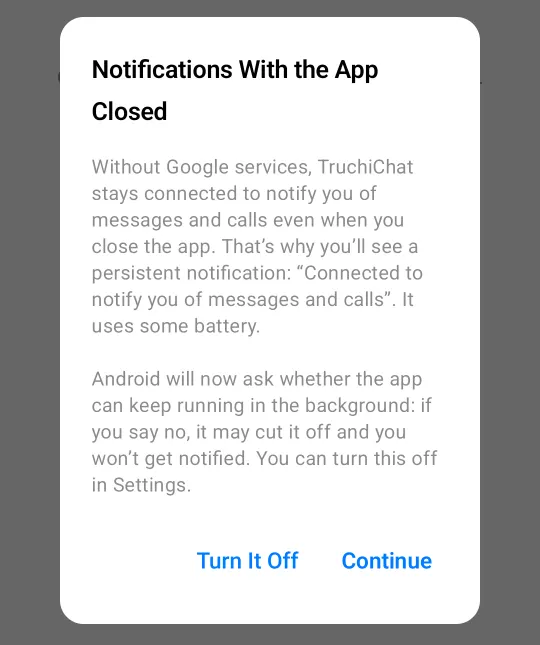
Notifications With the App Closed
This version of TruchiChat doesn’t use Google services to notify you: it stays connected on its own. That’s why you’ll see a persistent notification in the status bar, “Connected to notify you of messages and calls”. Tap Continue.
If your phone has Google services, the box still starts with “Without Google services”: it refers to the app, which doesn’t use them.
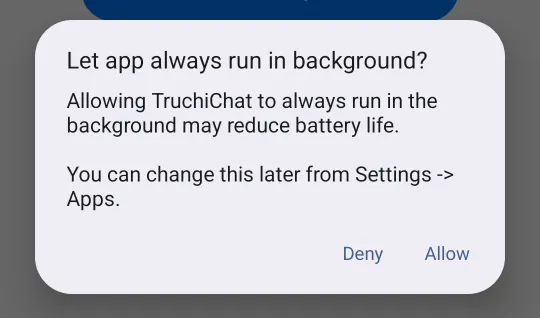
Android asks Let app always run in background? Tap Allow. Without this, your phone may cut it off and you wouldn’t get notifications.
If the app also asks to let calls show up full screen, allow it: that way you can answer with your phone locked. It’s usually already allowed.
Once that’s done, if you don’t have GrapheneOS, check what applies to your brand: some have their own battery savers that are best turned off.
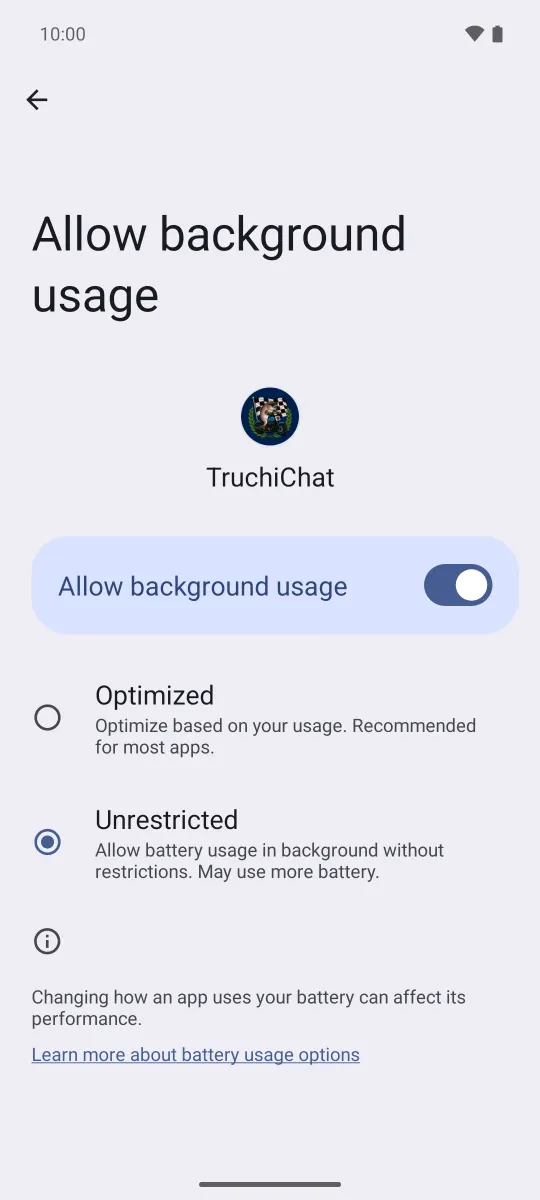
Battery on Stock Android
If you ever change it or want to check: Settings › Apps › TruchiChat › App battery usage › Allow background usage. It has to be on and set to Unrestricted. With Restricted, Android stops the app and doesn’t notify you.
Brand by Brand
We don’t have screenshots for these brands: the menu names come from their help pages and from reliable guides, checked on October 3, 2026 (the sources are below). They change a little with each version. If you can’t find a menu, use the search in Settings and type the word in bold.
Samsung Galaxy
Auto Blocker
Samsung has Auto Blocker, which won’t let you install anything that doesn’t come from Galaxy Store or Google Play. On Galaxy phones that shipped with One UI 6.1.1 or later it’s on out of the box; on ones updated from an earlier version it stays as it was.
If it’s on, the installation stops with a Samsung warning. Turn it off for a moment:
- Settings › Security and privacy › Auto Blocker, and turn it off.
- Open the file again and install with the common steps. On Samsung, Play Protect shows up too.
- Turn Auto Blocker back on.
It also blocks updates: every time you update TruchiChat you’ll have to turn it off and back on.
Install Unknown Apps
It’s the same box as in the common steps. If you download the file with Samsung Internet, you give the permission to Samsung Internet instead of Chrome.
Battery
- Settings › Apps › TruchiChat › Battery: choose Unrestricted.
- Settings › Device care › Battery › Background usage limits: add TruchiChat to Never auto sleeping apps (in other versions, Never sleeping apps). Make sure it isn’t in Sleeping apps or Deep sleeping apps.
Depending on the model, “Device care” may be called “Device maintenance” or “Battery and device care.”
Xiaomi, Redmi and POCO
They run HyperOS or, on older models, MIUI. The common steps work the same, with a few extra warnings.
Install Unknown Apps
Chrome’s box from the common steps appears. If it doesn’t, do it by hand:
- HyperOS: Settings › Privacy protection › Special permissions › Install unknown apps › Chrome, and turn on Allow from this source.
- MIUI: Settings › Additional settings › Privacy › Special app access › Install unknown apps.
The Xiaomi Installer
Before installing, the phone may scan the app and show you its own warnings, on top of Play Protect’s. HyperOS 2 and 3 have an extra confirmation or two. Sometimes the button to continue takes a few seconds to become active: wait until it does and always choose the option to keep installing. If it asks you to sign in with a Xiaomi account to continue, that’s the phone’s doing, not TruchiChat’s.
Battery and Autostart
Xiaomi is one of the brands that cut off background apps the most. The three settings:
- Settings › Apps › Manage apps › TruchiChat: turn on Autostart.
- On that same screen, Battery saver: choose No restrictions.
- In recent apps, press and hold TruchiChat and tap the lock, so it doesn’t close when you clear your recent apps.
OPPO, OnePlus and realme
They run ColorOS, OxygenOS or realme UI, which are almost the same under the hood.
Install Unknown Apps
Chrome’s box from the common steps appears. If it doesn’t, do it by hand: Settings › Password & security › System security › Install sources, and turn on Chrome. In other versions you’ll find it with search, as Install unknown apps.
The phone may show its own warning before or after Play Protect’s. Choose the option to keep installing.
Battery and Auto Launch
- Settings › Apps › TruchiChat › Battery usage (or search for App battery management): turn on Allow background activity and Allow auto launch. On realme, also turn on Allow foreground activity.
- On OnePlus, if you have Battery optimization, set TruchiChat to Don’t optimize, and turn off Advanced optimization if your version has it.
- In recent apps, lock TruchiChat with the lock (press and hold it or tap the menu on its card).
Motorola and Google Pixel
They’re close to stock Android: the common steps and screenshots apply as they are, Play Protect included. On a Pixel it’s exactly what you’ll see.
Battery: Settings › Apps › TruchiChat › App battery usage, and choose Unrestricted, as in the last screenshot.
Huawei and Honor
Honor
Current Honor phones come with Google services: the common steps work the same, Play Protect included. For the battery, search for App launch, tap TruchiChat, turn off automatic management and leave Auto-launch, Secondary launch and Run in background on. Depending on the version, the names may vary a little.
Huawei Without Google
On a Huawei with EMUI or with HarmonyOS 2, 3 or 4 you can install it, and here the advantage is clear: TruchiChat doesn’t need Google to notify you. Since there’s no Google, Play Protect doesn’t show up; the rest of the common steps are the same.
- Huawei may show its own security warning: choose to keep installing. If you have Pure Mode on and it won’t let you, turn it off for a moment (find it with search), install, and turn it back on.
- Battery: Settings › Battery › App launch › TruchiChat. Turn off automatic management and leave Auto-launch, Secondary launch and Run in background on.
- TruchiChat needs Android 12 or later underneath. If the phone says it can’t install it or that there was a problem parsing the package, its base is older and it won’t work on that phone.
HarmonyOS NEXT, or HarmonyOS 5 and later, no longer install Android apps. TruchiChat can’t be installed on those Huawei phones.
When There’s a New Version
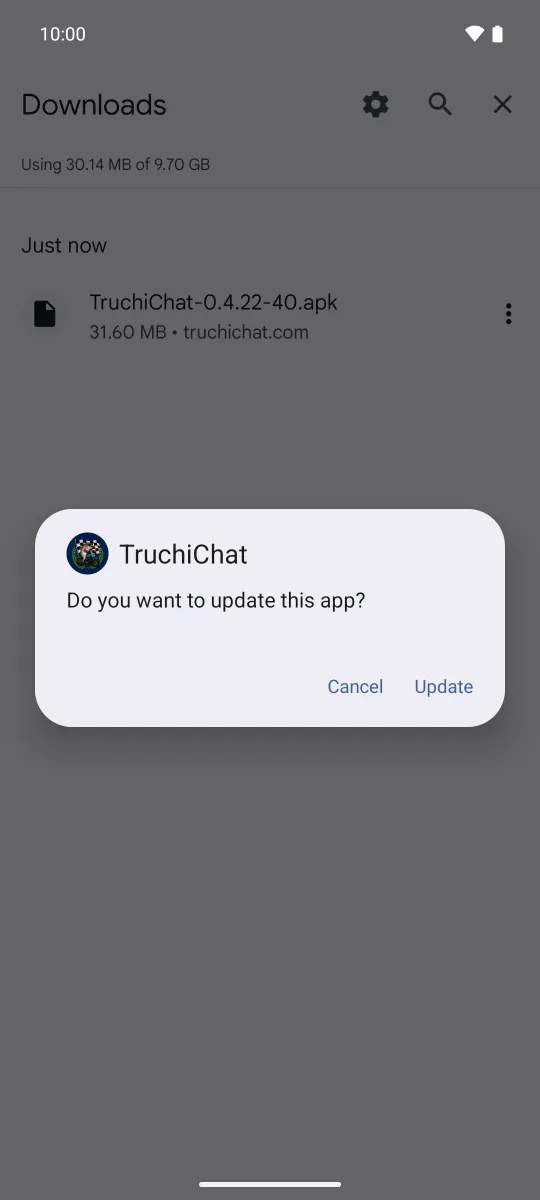
When TruchiChat tells you there’s a new version, tap the notice: it takes you to Downloads, where Get the new version gets the latest one. The button on this page, Download TruchiChat, works too and always gets the latest. It installs over the old one and you don’t lose anything.
- Open the downloaded file, like the first time.
- Now the box says Do you want to update this app? Tap Update.
- On a phone with Google, Play Protect shows up again: More details › Install anyway.
Never uninstall to update. Your account and your chats are only on your phone, with no cloud backup: if you uninstall, they’re lost.
- If you turned off Chrome’s permission to install apps, it will ask you again: allow it the same way as the first time.
- On Samsung, turn off Auto Blocker first and turn it back on when you’re done.
Bookmark this page so you have it handy.
Check It’s Ours
Every version is signed with the same key, and when you update, Android only lets you install over it a version signed with that key. The SHA-256 fingerprint of its certificate is:
53:C9:FB:E7:A1:97:65:63:42:CF:8A:00:21:08:8B:14:AD:D7:45:21:7E:30:6C:4C:5C:5E:9A:E2:F7:D2:F4:86
The package name is com.truchichat.app.gos.
- On your phone, with AppVerifier: open TruchiChat in AppVerifier (or share the APK with it) and compare with this text, which you can copy as is:
com.truchichat.app.gos
53:C9:FB:E7:A1:97:65:63:42:CF:8A:00:21:08:8B:14:AD:D7:45:21:7E:30:6C:4C:5C:5E:9A:E2:F7:D2:F4:86 - On a computer, with
apksigner(from the Android tools):apksigner verify --print-certs TruchiChat-….apk. The “certificate SHA-256 digest” line has to say53c9fbe7a197656342cf8a0021088b14add745217e306c4c5c5e9ae2f7d2f486. - The file:
shasum -a 256 TruchiChat-….apkon Mac or Linux, orcertutil -hashfile TruchiChat-….apk SHA256on Windows, has to give the SHA-256 shown below the download button.
If anything doesn’t match, don’t install it and write to us at soporte@truchichat.com.
If Something Goes Wrong
I don’t get messages or calls with the app closed
Check, in this order:
- That the persistent notification “Connected to notify you of messages and calls” is in the status bar. If it isn’t, open TruchiChat, go to its Settings and turn on Background Connection.
- That TruchiChat’s battery is set to Unrestricted, and what applies to your brand: Samsung, Xiaomi, OPPO, OnePlus and realme, Huawei and Honor.
- That TruchiChat’s notifications are allowed in Android Settings.
- That your phone’s battery saver isn’t on all the time: on many phones it cuts off what runs in the background.
Whatever arrives in the meantime isn’t lost: it waits for you encrypted on the server, for up to 24 hours, and shows up when you open the app.
It says “App not installed” or that it can’t be installed
- Android version. You need Android 12 or later. You can see it in Settings › About phone.
- 32-bit phones. TruchiChat only runs on 64-bit phones. Almost all phones from recent years are, but some very basic ones aren’t, even with Android 12.
- The file only partly downloaded. Delete it from Downloads and download it again from this page.
- Low storage. Free up a few hundred MB.
- You already have TruchiChat from Google Play. That doesn’t stop it: this is a different app, with a different package name, and both can be installed at once. You’ll see two identical icons and each one will have its own account.
Updating fails
- Download the file again from the button on this page, in case it only partly downloaded.
- On Samsung, Auto Blocker also blocks updates.
- If you turned off the browser’s permission to install apps, allow it again.
- If it still fails, don’t uninstall: write to us at soporte@truchichat.com and we’ll look into it.
Sources for each brand’s menus
Checked on October 3, 2026. In parentheses, the date each page gives.
- Samsung Spain, Auto Blocker, in Spanish (July 24, 2026).
- Samsung Colombia, sleeping apps, in Spanish (September 2, 2026).
- Xiaomi, FAQ on mi.com/es about battery saver and autostart, and installing unknown apps, in Spanish (no date).
- TechBone, Xiaomi and OPPO guides to installing apps from unknown sources (August 11, 2026).
- Huawei Support, background activity on OPPO phones, in Spanish (no date).
- Google Play Help, Play Protect (no date).
- dontkillmyapp.com, battery savers by brand (June 9, 2026).
Stuck on a step? Tell us your brand and model and where you got stuck.
Write to Us